
Cloudflare Access now supports SAML assertion encryption for identity provider integrations. When turned on, your identity provider encrypts SAML assertions using a Cloudflare-managed certificate before sending them through the user's browser. Only Access can decrypt these assertions, protecting sensitive identity data even after TLS termination.
Without encryption, SAML assertions are transmitted in plaintext and could be visible to browser extensions or client-side malware.
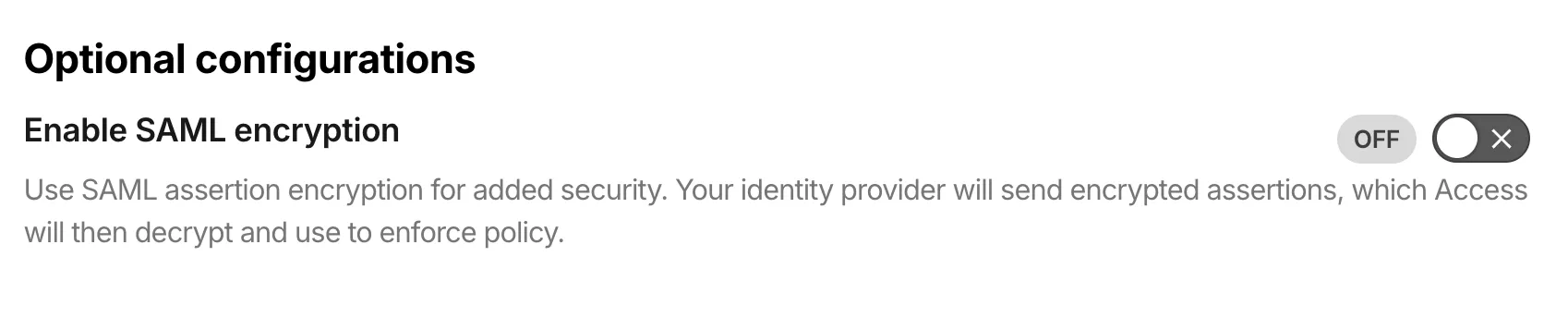
SAML encryption includes built-in certificate lifecycle management:
- Automatic certificate generation: Access generates an encryption certificate when you turn on SAML encryption for an identity provider.
- Certificate rotation: Rotate certificates without downtime. The previous certificate remains valid until expiration, giving you time to update your IdP.
- PEM export: Copy the certificate in PEM format for manual upload to your IdP, or point your IdP to the SAML metadata endpoint for automatic retrieval.
To get started, refer to Encrypt SAML assertions.
When you connect third-party MCP servers through MCP server portals, you have no control over how the server author named tools or wrote descriptions. Unclear names make it harder for AI agents to select the right tool and harder for users to understand what is available.
You can now rename tools and prompts and rewrite their descriptions directly on the portal, without modifying the upstream server. For example, a tool named
super_cool_toolcan becomesearch_customer_recordswith a description tailored to your organization.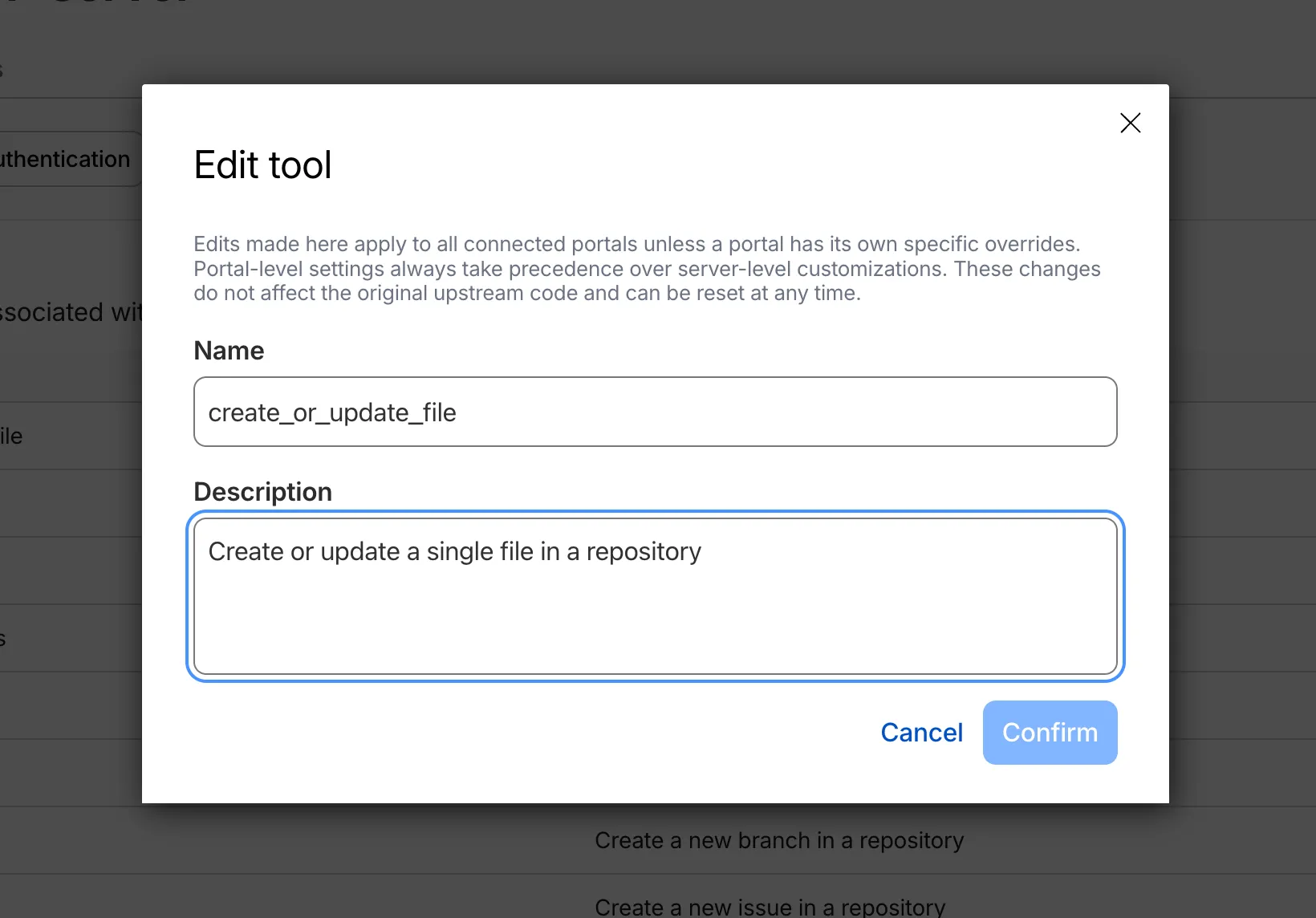
Modified tools display a Modified label in the tools list so administrators can see which tools have been customized at a glance.
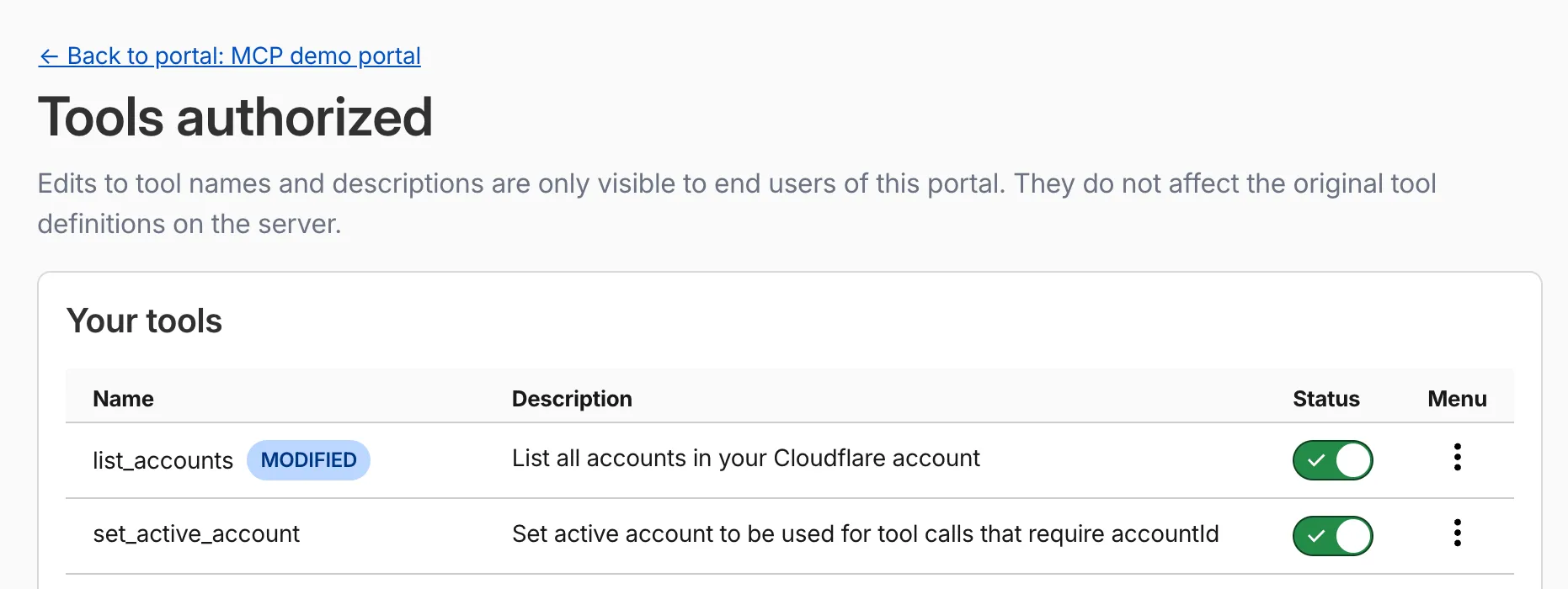
Aliases override the metadata that MCP clients receive. You can set them at two levels:
- Per portal: Applies only within a specific portal. Takes precedence over server-level aliases.
- Per server: Applies across all portals that use the server.
You can reset an alias at any time to restore the original upstream name.
For more information, refer to Tool and prompt aliases.
Cloudflare Access now supports using Cloudflare itself as an identity provider. If you publish an Access application and select Cloudflare as the login method, users can sign in with their existing Cloudflare account — no one-time PINs, no third-party IdP configuration, and no shared email inboxes. Authentication is backed by Cloudflare's own account security (including multi-factor authentication), making it both simpler to set up and more secure than OTP-based login for most use cases.
Cloudflare is now the default identity provider for all newly created Zero Trust accounts, replacing One-time PIN.
This also enables two new capabilities:
- Cloudflare Account Member selector — A new policy selector that matches users based on their membership in a Cloudflare account. You can target the current account or specify a different account ID for cross-account access scenarios.
- Restrict to account members — An identity provider configuration option that limits authentication to users who are members of your Cloudflare account.
To get started, add Cloudflare as an identity provider in your Zero Trust settings.
The Access login page and one-time password (OTP) page now feature a refreshed design that improves visual consistency, user trust, and mobile responsiveness.
Before:
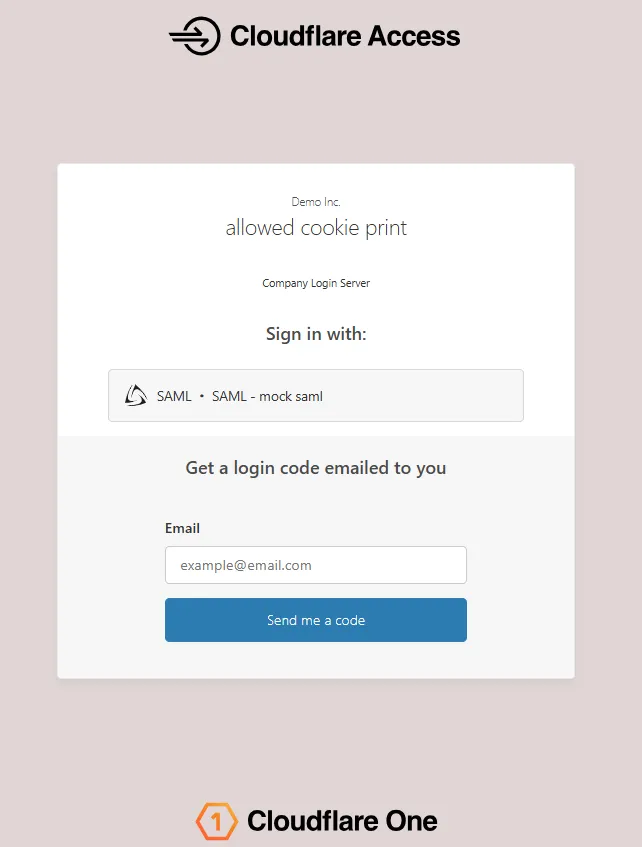
After:
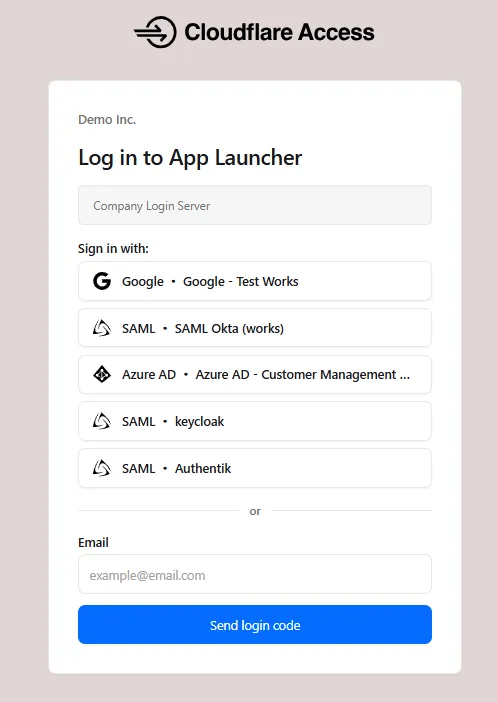
The updated login experience includes:
- Unified authentication card - All sign-in options (identity provider buttons, email input, OTP) now appear in a single card with consistent styling, replacing the previous multi-section layout.
- Consistent button styling - Identity provider buttons use a uniform size and layout for easier scanning and selection.
- Better mobile experience - Responsive layout improvements ensure the login page renders correctly on phones and tablets.
- Dark mode support - The login page now supports dark mode.
Independent MFA in Cloudflare Access now supports two additional organization-level controls:
- Restrict authenticators by AAGUID — Limit enrollment to a specific set of WebAuthn authenticators using their AAGUID ↗. This is useful for organizations that require FIPS-validated security keys or company-issued hardware. AAGUIDs are managed through a new List type.
- AMR matching — Skip the independent MFA prompt when the identity provider has already performed an equivalent MFA. Access reads the
amrclaim defined in RFC 8176 ↗ and matches supported values such ashwk,otp, andfptto the authenticator types allowed on the application or policy. This prevents users from having to complete MFA twice when their identity provider already enforces it.
To get started, refer to Independent MFA.
MCP server portals display a homepage when users visit the portal domain in a browser.
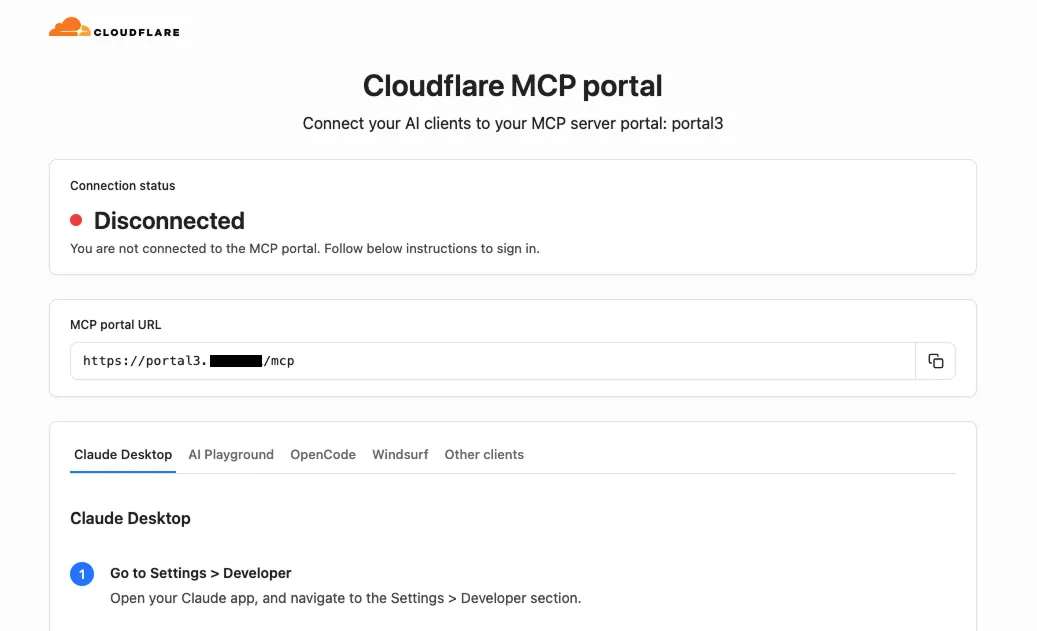
The homepage shows:
- The portal name and organization branding
- The MCP endpoint URL with a copy button
- Per-client connection instructions for Claude Desktop, Workers AI Playground, OpenCode, Windsurf, and other MCP clients
Authenticated users see their email address and a Sign out button. Selecting Sign out revokes all portal-level OAuth grants, deletes upstream server OAuth states, and redirects through Cloudflare Access logout. A confirmation page shows a summary of the revoked sessions.
For more information, refer to MCP server portals.
Cloudflare Access now supports independent multi-factor authentication (MFA), allowing you to enforce MFA requirements without relying on your identity provider (IdP). With per-application and per-policy configuration, you can enforce stricter authentication methods like hardware security keys on sensitive applications without requiring them across your entire organization. This reduces the risk of MFA fatigue for your broader user population while adding additional security where it matters most.
This feature also addresses common gaps in IdP-based MFA, such as inconsistent MFA policies across different identity providers or the need for additional security layers beyond what the IdP provides.
Independent MFA supports the following authenticator types:
- Authenticator application — Time-based one-time passwords (TOTP) using apps like Google Authenticator, Microsoft Authenticator, or Authy.
- Security key — Hardware security keys such as YubiKeys.
- Biometrics — Built-in device authenticators including Apple Touch ID, Apple Face ID, and Windows Hello.
You can configure MFA requirements at three levels:
Level Description Organization Enforce MFA by default for all applications in your account. Application Require or turn off MFA for a specific application. Policy Require or turn off MFA for users who match a specific policy. Settings at lower levels (policy) override settings at higher levels (organization), giving you granular control over MFA enforcement.
Users enroll their authenticators through the App Launcher. To help with onboarding, administrators can share a direct enrollment link:
<your-team-name>.cloudflareaccess.com/AddMfaDevice.To get started with Independent MFA, refer to Independent MFA.
MCP server portals support in-session management of upstream MCP server connections. Users can return to the server selection page at any time to enable or disable servers, reauthenticate, or change which data a server has access to — all without leaving their MCP client.
To return to the server selection page, ask your AI agent with a prompt like "take me back to the server selection page." The portal responds with an authorization URL via MCP elicitation ↗ that you open in your browser:
https://<subdomain>.<domain>/authorize?elicitationId=<ELICITATION_ID>From the server selection page you can:
- Enable or disable servers — Toggle individual upstream MCP servers on or off. Disabling a server removes its tools from the active session, which reduces context window usage.
- Log out and reauthenticate — Log out of a server and log back in to change which data the server has access to, or to reauthenticate with different permissions.
Users can also enable or disable a server inline by asking their AI agent directly, for example "enable the wiki server" or "disable my Jira server."
The portal also automatically prompts connected users to authorize new servers when an admin adds them to the portal. This requires the use of managed OAuth.
For more information, refer to Manage portal sessions.
Access authentication logs and Gateway activity logs (DNS, Network, and HTTP) now feature a refreshed user interface that gives you more flexibility when viewing and analyzing your logs.
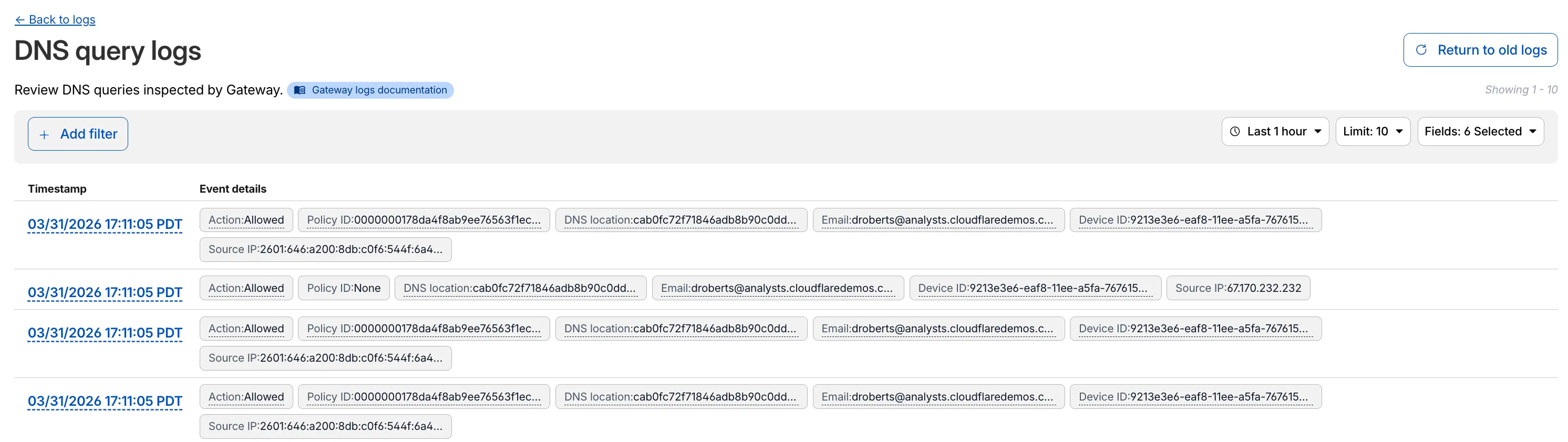
The updated UI includes:
- Filter by field - Select any field value to add it as a filter and narrow down your results.
- Customizable fields - Choose which fields to display in the log table. Querying for fewer fields improves log loading performance.
- View details - Select a timestamp to view the full details of a log entry.
- Switch to classic view - Return to the previous log viewer interface if needed.
For more information, refer to Access authentication logs and Gateway activity logs.
MCP server portals support code mode, a technique that reduces context window usage by replacing individual tool definitions with a single code execution tool. Code mode is turned on by default on all portals.
To turn it off, edit the portal in Access controls > AI controls and turn off Code mode under Basic information.
When code mode is active, the portal exposes a single
codetool instead of listing every tool from every upstream MCP server. The connected AI agent writes JavaScript that calls typedcodemode.*methods for each upstream tool. The generated code runs in an isolated Dynamic Worker environment, keeping authentication credentials and environment variables out of the model context.To use code mode, append
?codemode=search_and_executeto your portal URL when connecting from an MCP client:https://<subdomain>.<domain>/mcp?codemode=search_and_executeFor more information, refer to code mode.
MCP server portals support two context optimization options that reduce how many tokens tool definitions consume in the model's context window. Both options are activated by appending the
optimize_contextquery parameter to the portal URL.Strips tool descriptions and input schemas from all upstream tools, leaving only their names. The portal exposes a special
querytool that agents use to retrieve full definitions on demand. This provides up to 5x savings in token usage.https://<subdomain>.<domain>/mcp?optimize_context=minimize_toolsHides all upstream tools and exposes only two tools:
queryandexecute. Thequerytool searches and retrieves tool definitions. Theexecutetool runs the upstream tools in an isolated Dynamic Worker environment. This reduces the initial token cost to a small constant, regardless of how many tools are available through the portal.https://<subdomain>.<domain>/mcp?optimize_context=search_and_executeFor more information, refer to Optimize context.
Cloudflare Access supports managed OAuth, which allows non-browser clients — such as CLIs, AI agents, SDKs, and scripts — to authenticate with Access-protected applications using a standard OAuth 2.0 authorization code flow.
Previously, non-browser clients that attempted to access a protected application received a
302redirect to a login page they could not complete. The established workaround wascloudflared access curl, which required installing additional tooling.With managed OAuth, clients instead receive a
401response with aWWW-Authenticateheader that points to Access's OAuth discovery endpoints (RFC 8414 ↗ and RFC 9728 ↗). The client opens the end user's browser to the Access login page. The end user authenticates with their identity provider, and the client receives an OAuth access token for subsequent requests.Access enforces the same policies as a browser login; the OAuth layer is a new transport mechanism, not a separate authentication path.
Managed OAuth can be enabled on any self-hosted Access application or MCP server portal. It is opt-in for existing applications to avoid interfering with those that run their own OAuth servers and rely on their own
WWW-Authenticateheaders.To enable managed OAuth, go to Zero Trust > Access controls > Applications, edit the application, and turn on Managed OAuth under Advanced settings.
You can also enable it via the API by setting
oauth_configuration.enabledtotrueon the Access applications endpoint.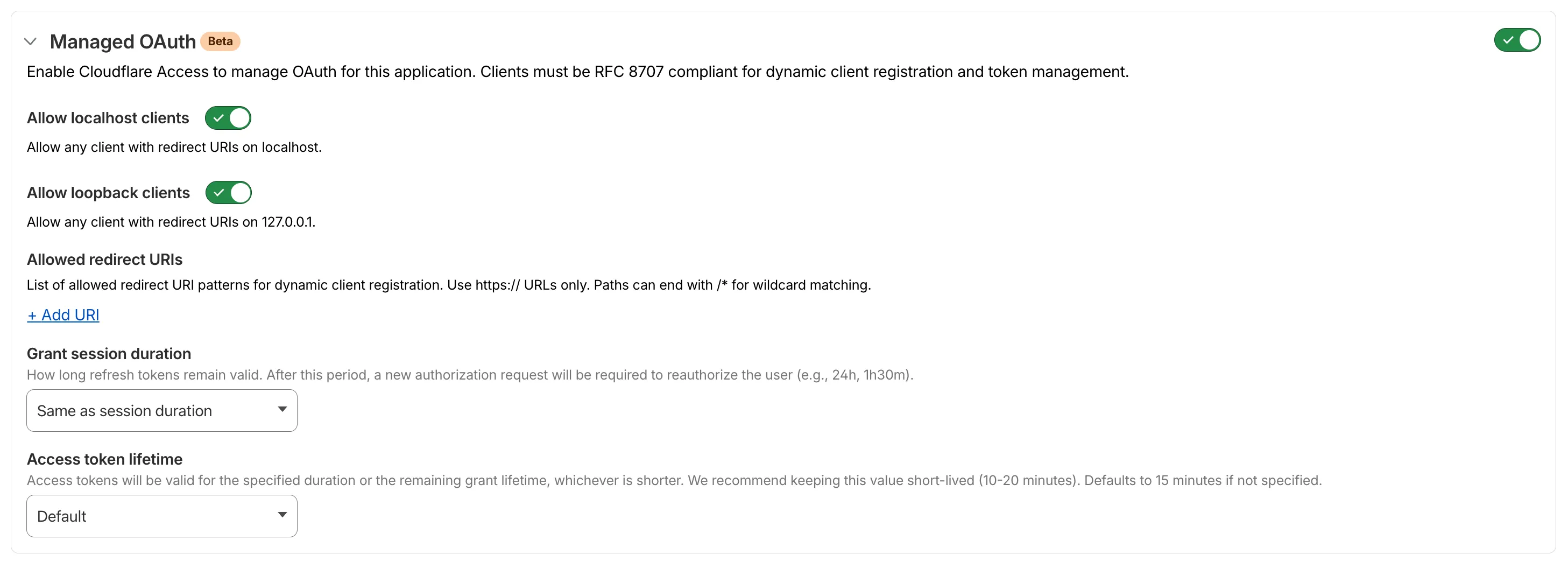
For setup instructions, refer to Enable managed OAuth.
MCP server portals can now route traffic through Cloudflare Gateway for richer HTTP request logging and data loss prevention (DLP) scanning.
When Gateway routing is turned on, portal traffic appears in your Gateway HTTP logs. You can create Gateway HTTP policies with DLP profiles to detect and block sensitive data sent to upstream MCP servers.
To enable Gateway routing, go to Access controls > AI controls, edit the portal, and turn on Route traffic through Cloudflare Gateway under Basic information.

For more details, refer to Route traffic through Gateway.
You can now use user risk scores in your Access policies. The new User Risk Score selector allows you to create Access policies that respond to user behavior patterns detected by Cloudflare's risk scoring system, including impossible travel, high DLP policy matches, and more.
For more information, refer to Use risk scores in Access policies.
You can now configure clipboard controls for browser-based RDP with Cloudflare Access. Clipboard controls allow administrators to restrict whether users can copy or paste text between their local machine and the remote Windows server.
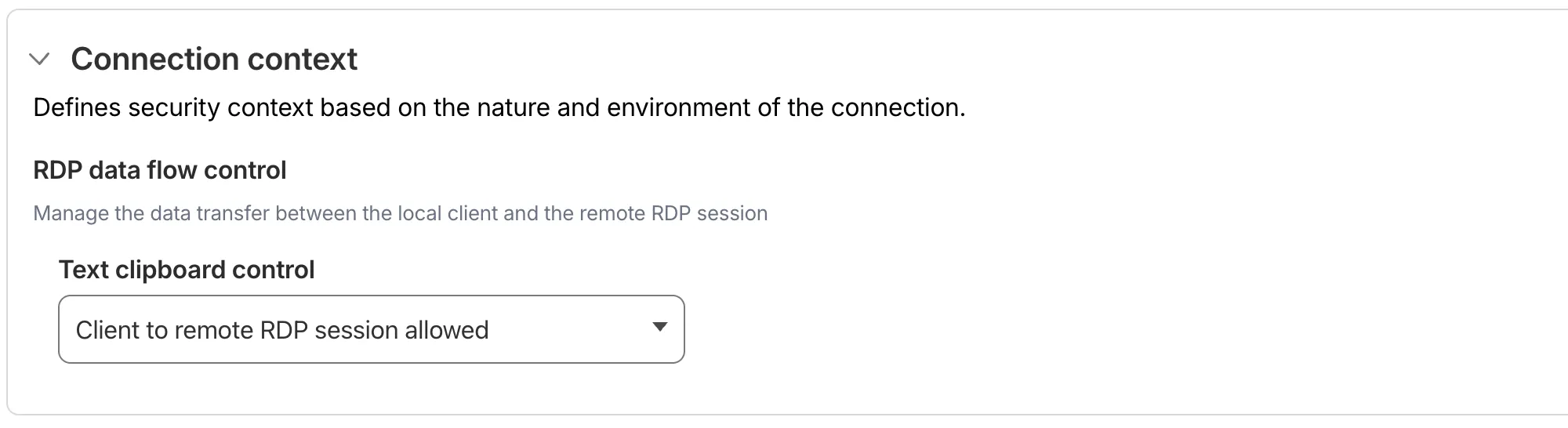
This feature is useful for organizations that support bring-your-own-device (BYOD) policies or third-party contractors using unmanaged devices. By restricting clipboard access, you can prevent sensitive data from being transferred out of the remote session to a user's personal device.
Clipboard controls are configured per policy within your Access application. For each policy, you can independently allow or deny:
- Copy from local client to remote RDP session — Users can copy/paste text from their local machine into the browser-based RDP session.
- Copy from remote RDP session to local client — Users can copy/paste text from the browser-based RDP session to their local machine.
By default, both directions are denied for new policies. For existing Access applications created before this feature was available, clipboard access remains enabled to preserve backwards compatibility.
When a user attempts a restricted clipboard action, the clipboard content is replaced with an error message informing them that the action is not allowed.
For more information, refer to Clipboard controls for browser-based RDP.
-
MCP server portals now supports Logpush integration. You can automatically export MCP server portal activity logs to third-party storage destinations or security information and event management (SIEM) tools for analysis and auditing.
The MCP server portal logs dataset includes fields such as:
Datetime— Timestamp of the requestPortalID/PortalAUD— Portal identifiersServerID/ServerURL— Upstream MCP server detailsMethod— JSON-RPC method (for example,tools/call,prompts/get,resources/read)ToolCallName/PromptGetName/ResourceReadURI— Method-specific identifiersUserID/UserEmail— Authenticated user informationSuccess/Error— Request outcomeServerResponseDurationMs— Response time from upstream server
For the complete field reference, refer to MCP portal logs.
To configure Logpush for MCP server portal logs, refer to Logpush integration.
A new Allow clientless access setting makes it easier to connect users without a device client to internal applications, without using public DNS.

Previously, to provide clientless access to a private hostname or IP without a published application, you had to create a separate bookmark application pointing to a prefixed Clientless Web Isolation URL (for example,
https://<your-teamname>.cloudflareaccess.com/browser/https://10.0.0.1/). This bookmark was visible to all users in the App Launcher, regardless of whether they had access to the underlying application.Now, you can manage clientless access directly within your private self-hosted application. When Allow clientless access is turned on, users who pass your Access application policies will see a tile in their App Launcher pointing to the prefixed URL. Users must have remote browser permissions to open the link.
You can now assign Access policies to bookmark applications. This lets you control which users see a bookmark in the App Launcher based on identity, device posture, and other policy rules.
Previously, bookmark applications were visible to all users in your organization. With policy support, you can now:
- Tailor the App Launcher to each user — Users only see the applications they have access to, reducing clutter and preventing accidental clicks on irrelevant resources.
- Restrict visibility of sensitive bookmarks — Limit who can view bookmarks to internal tools or partner resources based on group membership, identity provider, or device posture.
Bookmarks support all Access policy configurations except purpose justification, temporary authentication, and application isolation. If no policy is assigned, the bookmark remains visible to all users (maintaining backwards compatibility).
For more information, refer to Add bookmarks.
Fine-grained permissions for Access policies and Access service tokens are available. These new resource-scoped roles expand the existing RBAC model, enabling administrators to grant permissions scoped to individual resources.
- Cloudflare Access policy admin: Can edit a specific Access policy in an account.
- Cloudflare Access service token admin: Can edit a specific Access service token in an account.
These roles complement the existing resource-scoped roles for Access applications, identity providers, and infrastructure targets.
For more information:
You can now require Cloudflare Access protection for all hostnames in your account. When enabled, traffic to any hostname that does not have a matching Access application is automatically blocked.
This deny-by-default approach prevents accidental exposure of internal resources to the public Internet. If a developer deploys a new application or creates a DNS record without configuring an Access application, the traffic is blocked rather than exposed.
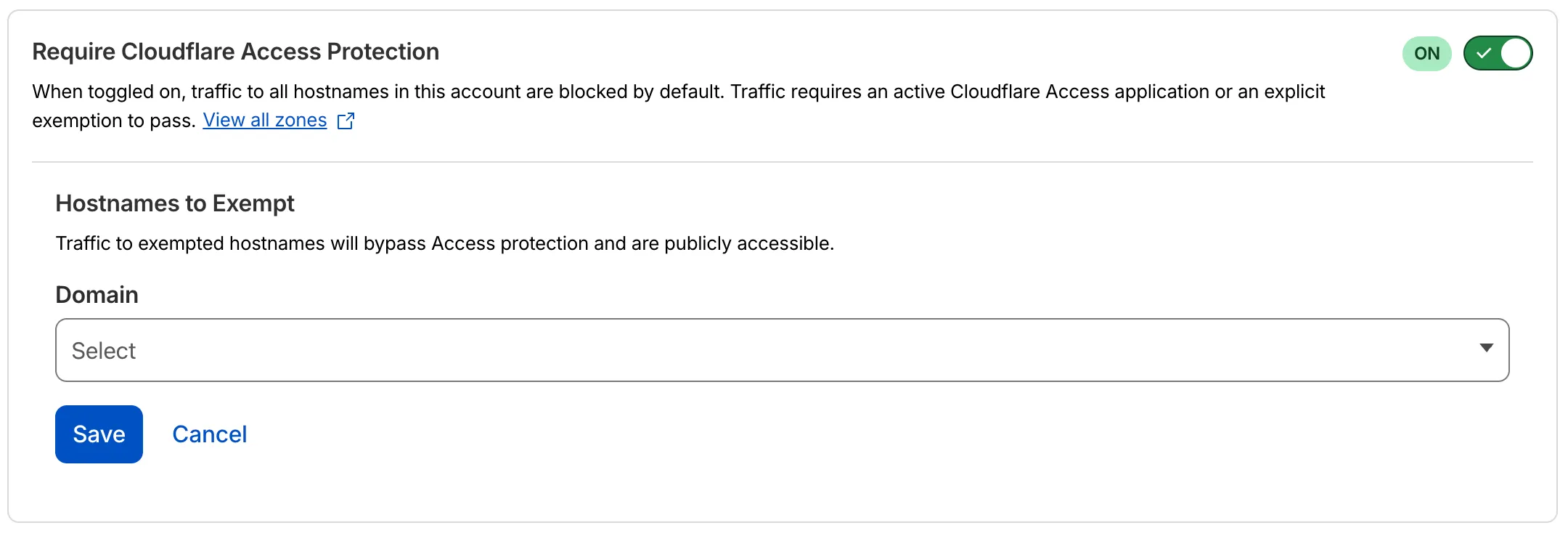
- Blocked by default: Traffic to all hostnames in the account is blocked unless an Access application exists for that hostname.
- Explicit access required: To allow traffic, create an Access application with an Allow or Bypass policy.
- Hostname exemptions: You can exempt specific hostnames from this requirement.
To turn on this feature, refer to Require Access protection.
Three new API token permissions are available for Cloudflare Access, giving you finer-grained control when building automations and integrations:
- Access: Organizations Revoke — Grants the ability to revoke user sessions in a Zero Trust organization. Use this permission when you need a token that can terminate active sessions without broader write access to organization settings.
- Access: Population Read — Grants read access to the SCIM users and groups synced from an identity provider to Cloudflare Access. Use this permission for tokens that only need to read synced user and group data.
- Access: Population Write — Grants write access to the SCIM users and groups synced from an identity provider to Cloudflare Access. Use this permission for tokens that need to create or modify synced user and group data.
These permissions are scoped at the account level and can be combined with existing Access permissions.
For a full list of available permissions, refer to API token permissions.
Cloudflare admin activity logs now capture each time a DNS over HTTP (DoH) user is created.
These logs can be viewed from the Cloudflare One dashboard ↗, pulled via the Cloudflare API, and exported through Logpush.
SSH with Cloudflare Access for Infrastructure allows you to use short-lived SSH certificates to eliminate SSH key management and reduce security risks associated with lost or stolen keys.
Previously, users had to generate this certificate by using the Cloudflare API ↗ directly. With this update, you can now create and manage this certificate in the Cloudflare One dashboard ↗ from the Access controls > Service credentials page.
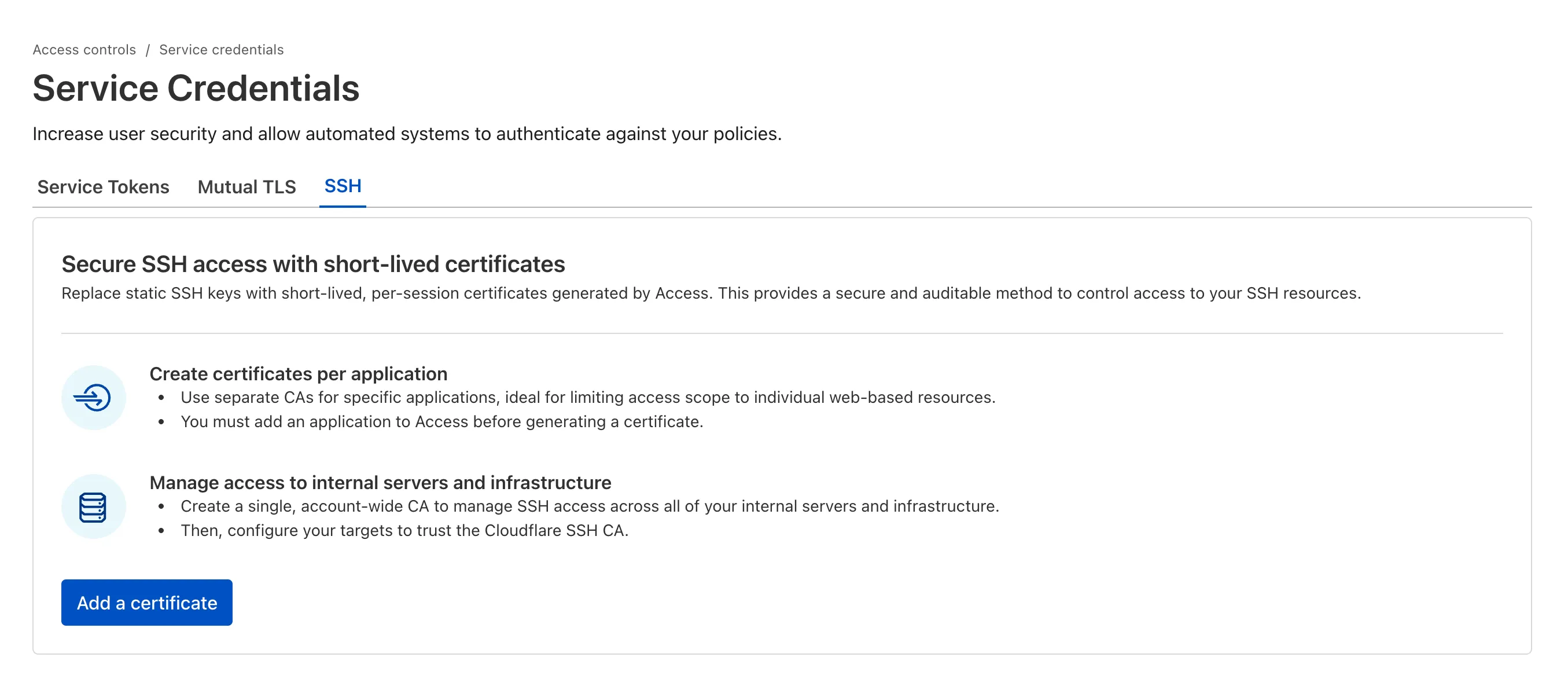
For more details, refer to Generate a Cloudflare SSH CA.
Cloudflare Access for private hostname applications can now secure traffic on all ports and protocols.
Previously, applying Zero Trust policies to private applications required the application to use HTTPS on port
443and support Server Name Indicator (SNI).This update removes that limitation. As long as the application is reachable via a Cloudflare off-ramp, you can now enforce your critical security controls — like single sign-on (SSO), MFA, device posture, and variable session lengths — to any private application. This allows you to extend Zero Trust security to services like SSH, RDP, internal databases, and other non-HTTPS applications.
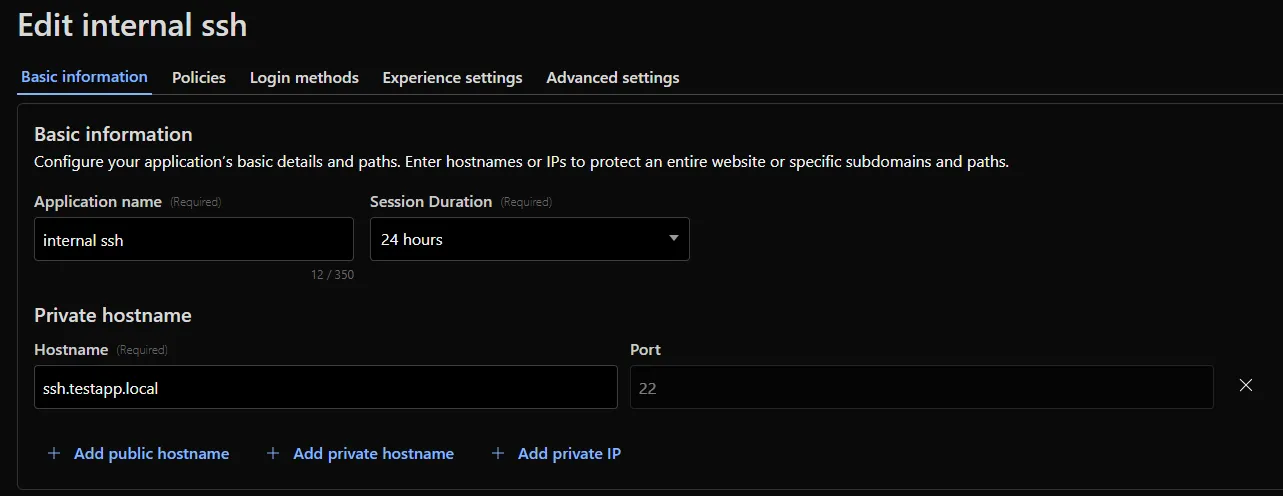
For example, you can now create a self-hosted application in Access for
ssh.testapp.localrunning on port22. You can then build a policy that only allows engineers in your organization to connect after they pass an SSO/MFA check and are using a corporate device.This feature is generally available across all plans.
Fine-grained permissions for Access Applications, Identity Providers (IdPs), and Targets is now available in Public Beta. This expands our RBAC model beyond account & zone-scoped roles, enabling administrators to grant permissions scoped to individual resources.
- Access Applications ↗: Grant admin permissions to specific Access Applications.
- Identity Providers ↗: Grant admin permissions to individual Identity Providers.
- Targets ↗: Grant admin rights to specific Targets
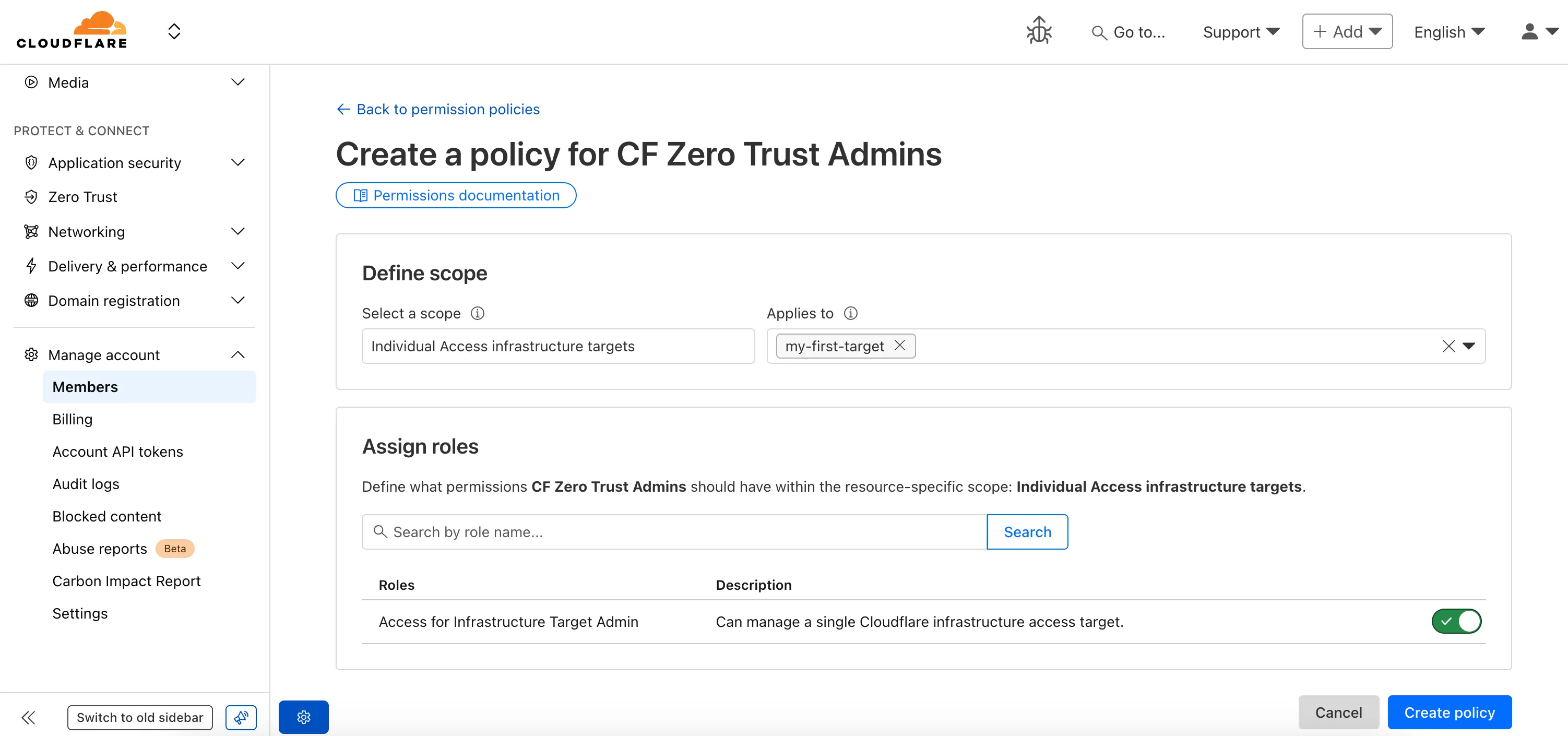
For more info: